Skip to content

Passport: a job board app for seekers and employers

A two-sided job board app: 10 iOS screens where job seekers browse, save and apply and employers post jobs and count applicants, built in under 6 months.

Passport

The engagement

Client
Passport
Industry
Recruiting and job search
Year
To follow
Duration
Under 6 months
Delivered
10 screens, iOS, a job-seeker side and an employer side, built full stack
Stack
To follow
Role
Full-stack development: design and build of the mobile app

Passport is a job board app with two sides. A job seeker browses jobs as cards, saves them with a heart, applies and tracks every application; an employer posts a job from one form and watches the applicant count on each listing. Plainbuilt designed and built it full stack and delivered it in under 6 months: 10 iOS screens across both sides. The design rests on one choice, made on the first screen: Find Job or Find Employees.

Who is Passport for?

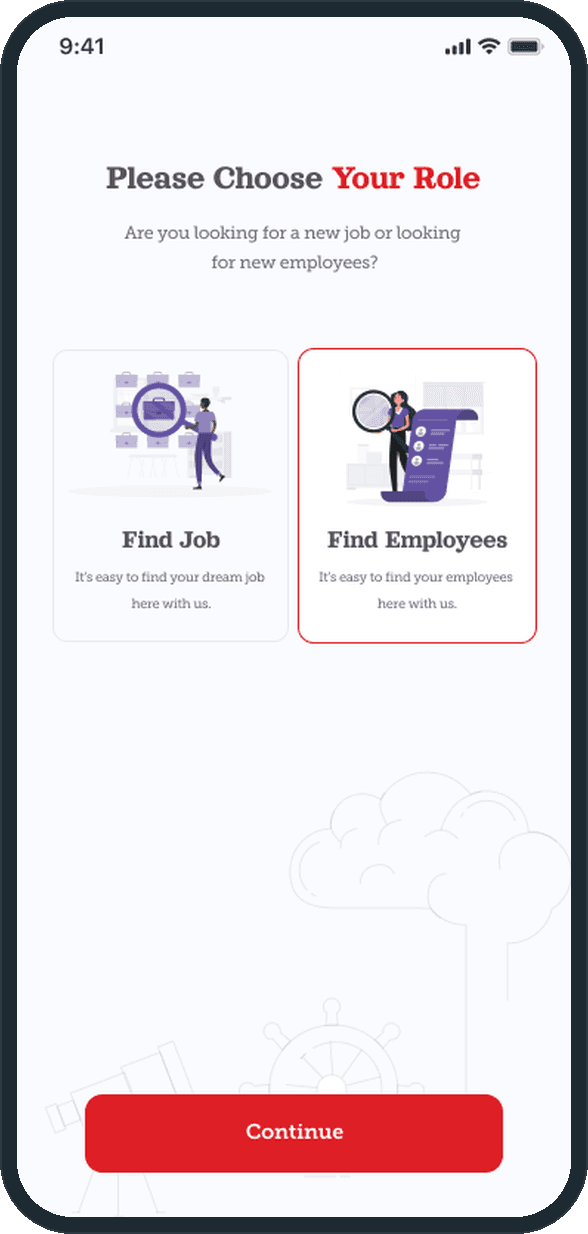
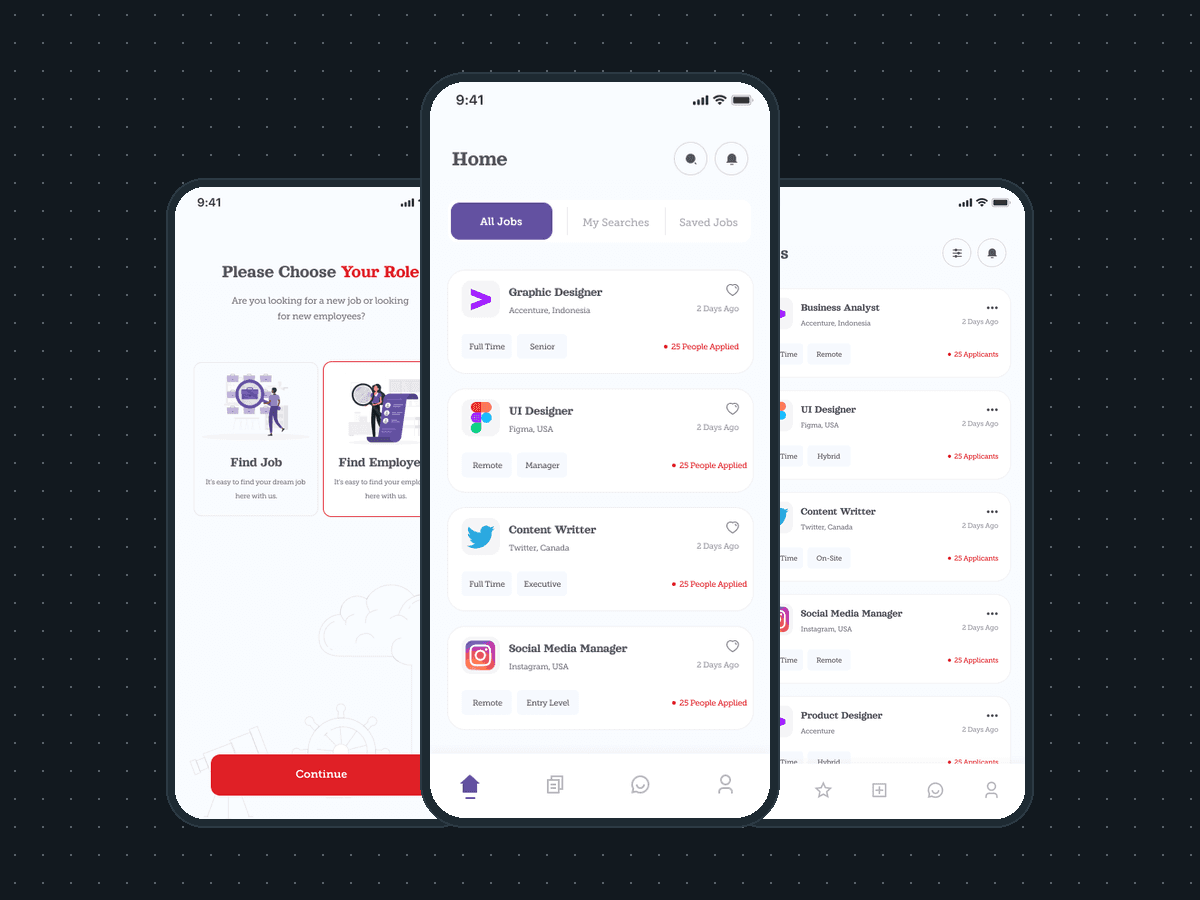
Two crowds. On one side, people looking for work: the Find Job card reads "It's easy to find your dream job here with us." On the other, employers: the Find Employees card reads "It's easy to find your employees here with us." The first screen after the splash asks which one the person is, and the Continue button opens that side. Each side then has its own screens.

What did Plainbuilt build?

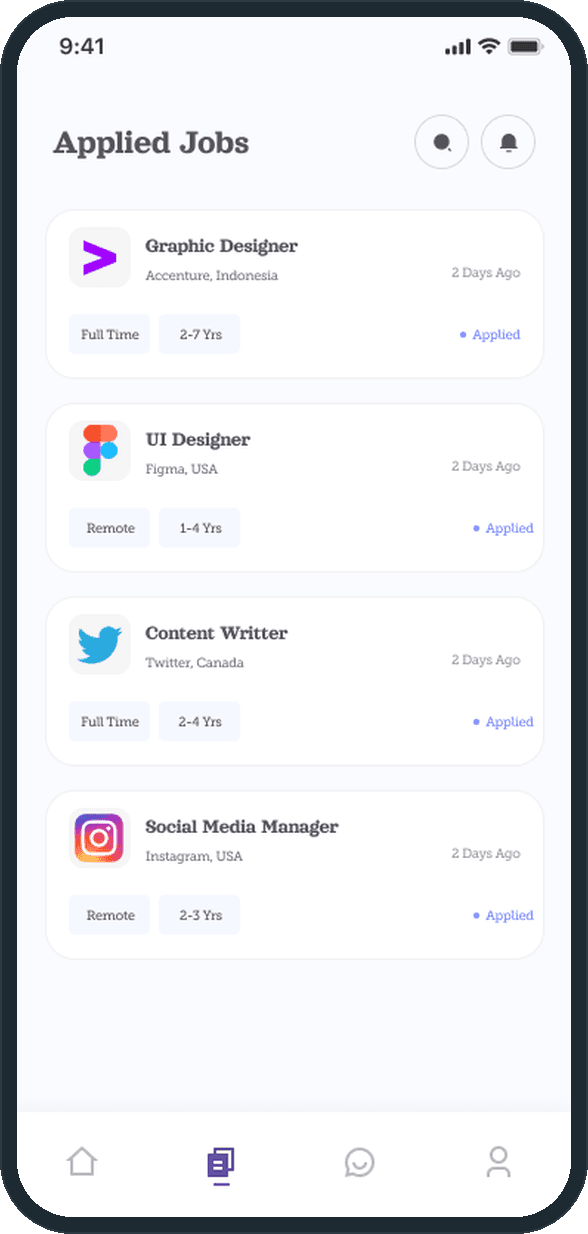
The seeker side: the splash with the Passport mark, the role choice, a home with All Jobs, My Searches and Saved Jobs tabs over job cards, an Applied Jobs list with the experience band on each application, a message inbox with search, and a profile with Details and Preference tabs, an About, skills chips, a resume download and fields for work status, total experience, job title, company, industry, department and job type. Four tabs in the nav.

The employer side: a Jobs list with the applicant count on each post and a menu to edit the job details or delete it, the Posts form, a message inbox of candidates, a company profile with Company Details and Recruiters tabs, and an Upgrade screen with a monthly and a yearly plan. Five tabs in the nav.

What does posting and applying look like?

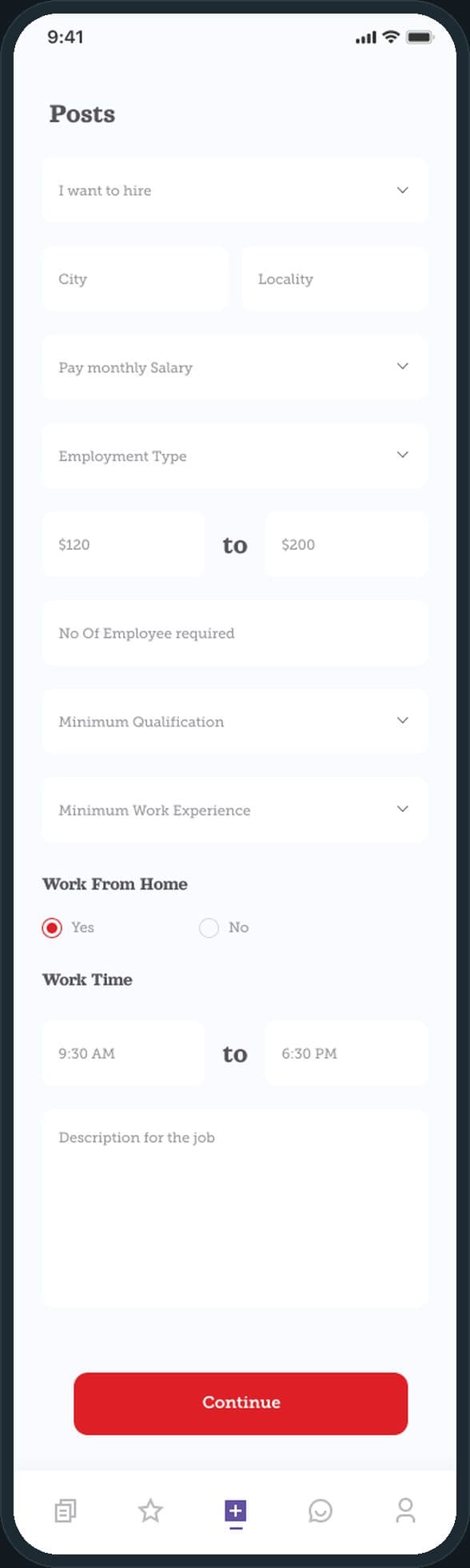
An employer opens the Posts tab and fills one form: what they want to hire, the city and locality, the pay period, the employment type, a salary band, how many people they need, the minimum qualification and work experience, work from home yes or no, the work hours and a description, then one red Continue button. Posted jobs sit on the Jobs list, each with its type chips and a red applicant count.

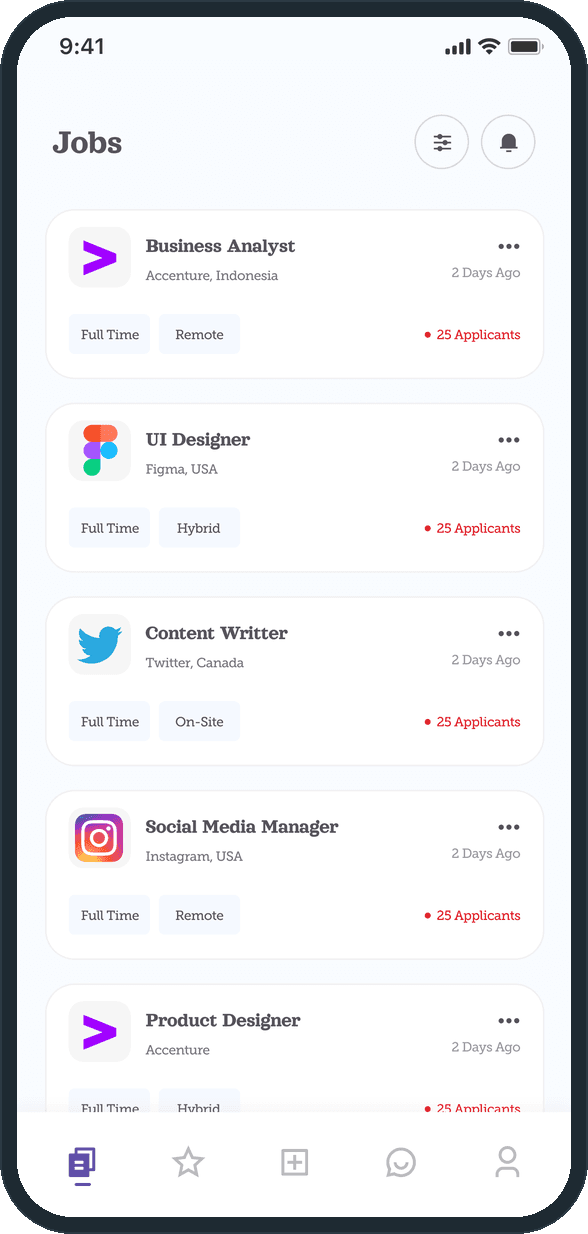
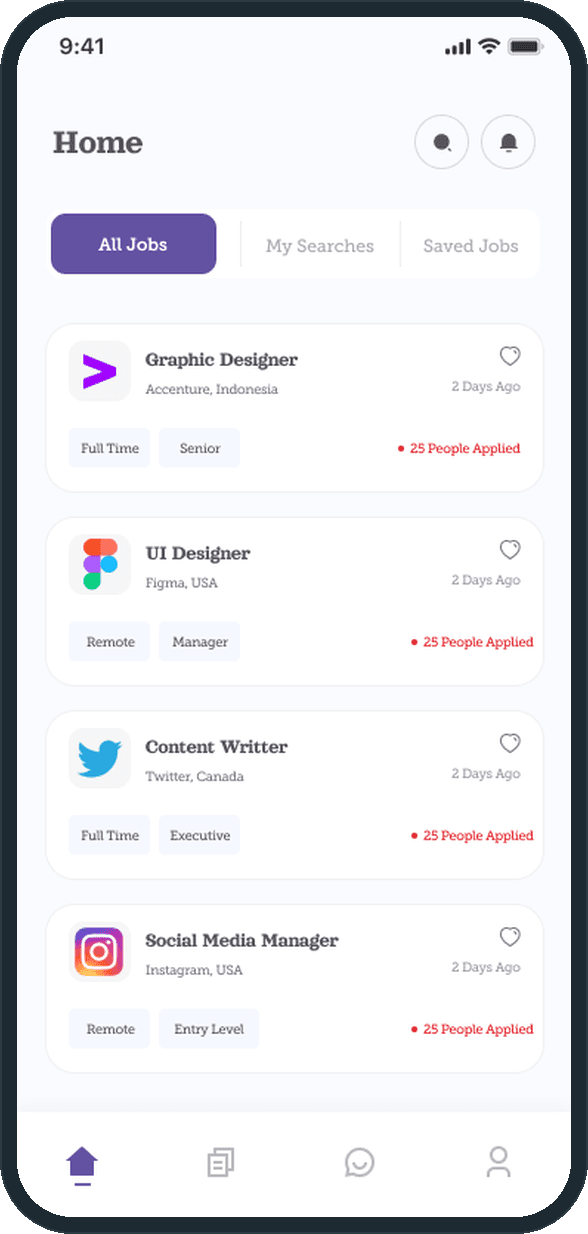
A seeker sees that job as a card on All Jobs: the logo, the role, the company and country, how long ago it was posted, the type and level chips, how many people applied, and a heart. The heart saves it under Saved Jobs. An application lands on Applied Jobs with the job type, the experience band and an Applied badge, so the seeker can see every open application in one list.

Why ask for the role before anything else?

Because the two sides want different things from the same job. A seeker wants to browse, save and apply; an employer wants to post, count and edit. Putting one screen with two cards in front of both, before the home screen, lets each side get a tab bar built for its own work: four tabs for the seeker, five for the employer with a post button in the middle. The job card stays the same object on both sides, so the app reads as one product, not two.

How does a job seeker find a role and apply?

The seeker's home lists jobs as cards: the company logo, the role, the company and country, how long ago it was posted, two chips for the job type and the level, how many people applied, and a heart to save the listing. My Searches and Saved Jobs sit as tabs beside All Jobs, with search and alerts in the corner. Applied Jobs keeps every application in one list, each with its job type, an experience band and an Applied badge.
  • Passport: How does a job seeker find a role and apply?
  • Passport: How does a job seeker find a role and apply?

How does an employer post a job?

One form on the Posts tab, top to bottom: what they want to hire, the city and locality, the pay period, the employment type, a salary band with a low and a high figure, how many people they need, the minimum qualification and the minimum work experience, whether the job is work from home, the work hours as a start and an end time, and a description, then one red Continue button. Nothing is split across steps, so an employer can read the whole post before sending it.

Passport: How does an employer post a job?

What does an employer see once a job is posted?

A Jobs list. Each posted role shows its chips for the job type and the place of work (Full Time, Remote, Hybrid, On-Site), how long ago it went up and a red count of applicants, with a three-dot menu to edit the job details or delete the post. Filter and alerts sit at the top, and the five-tab nav has the post button in the middle.

  • Passport: What does an employer see once a job is posted?

Is it one app for both sides of hiring?

Yes. After the Passport splash, the first screen asks one question, Are you looking for a new job or looking for new employees, with two cards: Find Job and Find Employees. Continue takes the person to the side they chose. Each side then gets its own home, its own tab bar, its own inbox and its own profile, in the same red and purple.

  • Passport: Is it one app for both sides of hiring?
  • Passport: Is it one app for both sides of hiring?

The decisions

  • The role is chosen once, on the first screen.

    Find Job or Find Employees, before anything else. Everything after it belongs to one side: the seeker gets four tabs, the employer gets five, and neither sees the other's screens.

  • The job card is the same object on both sides.

    A logo, a role, a company, a posted-ago line and two chips. The seeker's card ends in a heart and the count of people who applied; the employer's card ends in a menu and the count of applicants. One card, read from two directions.

  • A job is one form.

    The employer fills a single scrolling form that ends in one Continue button. The type, the pay, the experience, the hours and work from home are asked in the same place, so a post carries its facts on the day it goes up.

  • Red for the action, purple for where you are.

    Continue, the applicant counts and one ring of the mark are red. The active tab, the active nav icon and the Applied badge are purple, and the chips sit on a pale tint of it. Headings sit in a serif face on a cool near-white ground, so the two colors carry the meaning.

What was the outcome?

Built and delivered in under 6 months

One outcome per item, dated, or not disclosed: never an estimate.

Which of our services apply

Common questions

Did Plainbuilt build Passport?

Yes. Plainbuilt designed and built it full stack and delivered it in under 6 months.

Can Plainbuilt build a two-sided job board app like Passport?

Yes. The same shape of engagement: a working session to scope both sides, then the screens, the build and the delivery. Book a working session to scope one.