Skip to content

Savvy: a food delivery app for three kinds of person

Savvy, a food delivery app: 29 iOS screens for the customer, restaurant and driver, from nearby restaurants to the rider on a map, built in under 6 months.

Savvy

The engagement

Client
Savvy
Industry
Restaurants and food delivery
Year
To follow
Duration
Under 6 months
Delivered
29 screens, iOS, customer ordering and tracking, a restaurant orders board, menu and drivers, driver sign-up and payouts, built full stack
Stack
To follow
Role
Full-stack development: design and build of the mobile app

Savvy is a food delivery app with three sides: the customer, the restaurant and the driver. Plainbuilt designed and built it full stack and delivered it in under 6 months: 29 iOS screens for browsing nearby restaurants, ordering and following the rider on a map, a restaurant orders board with a dish menu and its own drivers, and driver sign-up, assigned orders and payouts. The design rests on one order seen three ways.

Who is Savvy for?

Three kinds of person, and the first screen asks which: Customer or Become a Driver. The restaurant has an app of its own with Payments, History, My Dishes and Delivery Person in its drawer. The customer wants dinner from a place nearby and wants to know where it is. The restaurant wants the new order in front of the kitchen the moment it comes in, its dishes in one list and its own drivers on the road. The driver wants the assigned orders, the route and the payout for each one.

What did Plainbuilt build?

The whole app, front to back, as the screens show it. On the customer side: onboarding, a home screen with search, promo cards and Near By Restaurants, Search Food, a restaurant page with Recommended Food and Browse Menu, a cart with Online Delivery or Self Delivery, an order map with the rider's name and a call button, a canceled-order screen, Order History with Re Order and Rate Delivery, Help and Support, and a side menu with the password, the legal pages and settings. On the driver side: a two-step Become A Driver sign-up with the license, the SSN and the W-9 upload, a verification screen, Assigned Orders and Previous Orders with Delivered and Declined chips, the route with Mark as Complete, History, and Payment with Pending and Received tabs. On the restaurant side: the orders board, My Dishes with category chips and discount badges, a dish page with an ingredient grid in grams, a New Dish form, Restaurant Driver with Assigned and Free tabs, Add Driver, a driver filter, notification settings, Payment and History.

What does an order look like from each side?

The customer picks a restaurant from the home screen, adds dishes with the stepper, chooses Online Delivery or Self Delivery and submits. The order lands on the restaurant's board under a New Order banner, as a card with the dishes, the total, a countdown ring and the Ready and Preparing actions. The restaurant assigns a free driver, and Track Driver follows the delivery. The driver sees the order under Assigned Orders, opens the route and marks it complete. The customer, all the while, watches the same route on the map with the delivery time, the drop-off address and the rider's name one tap from a call.

Why does the restaurant manage its own drivers?

Because a restaurant that already has a delivery person should not have to hand the order to a stranger. Restaurant Driver lists the drivers with Assigned and Free tabs, Add Driver creates one with a temporary password to share, and the filter separates the ones Added by us from the ones under Onfleet. The Delivery Person entry sits in the same drawer as My Dishes and Payments, so the drivers are one more thing the restaurant runs, not a second system.

How does a customer order food?

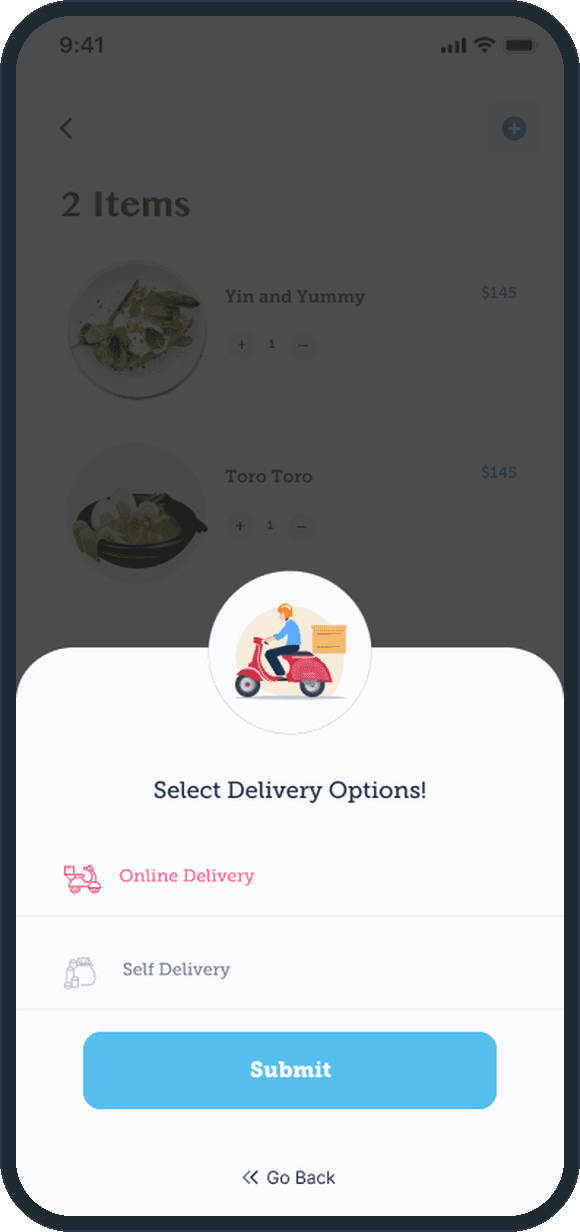
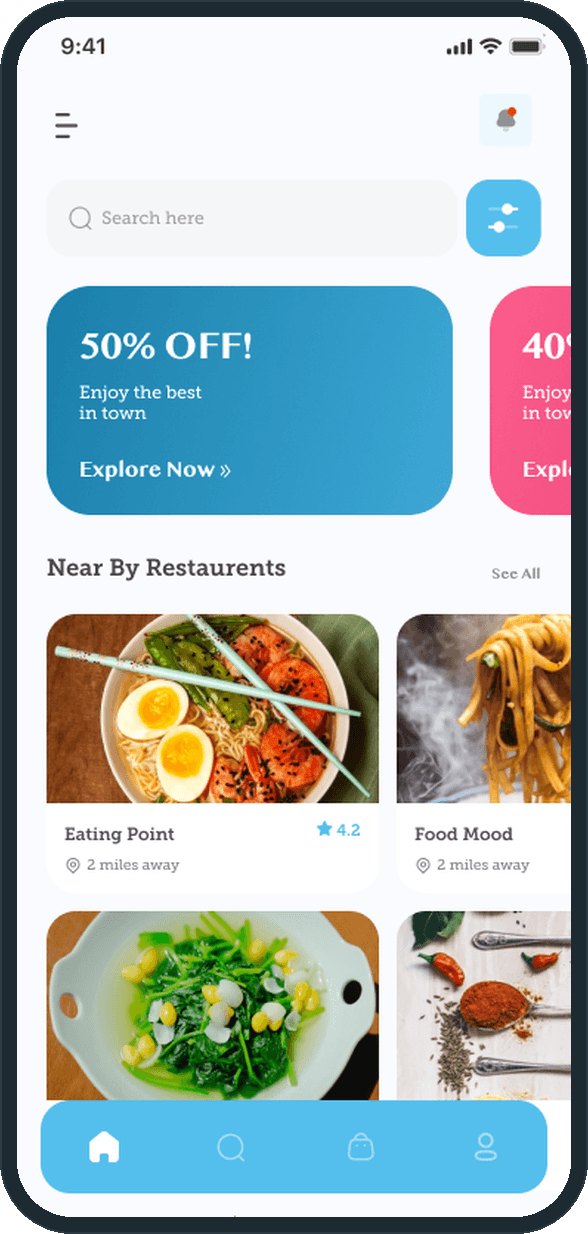
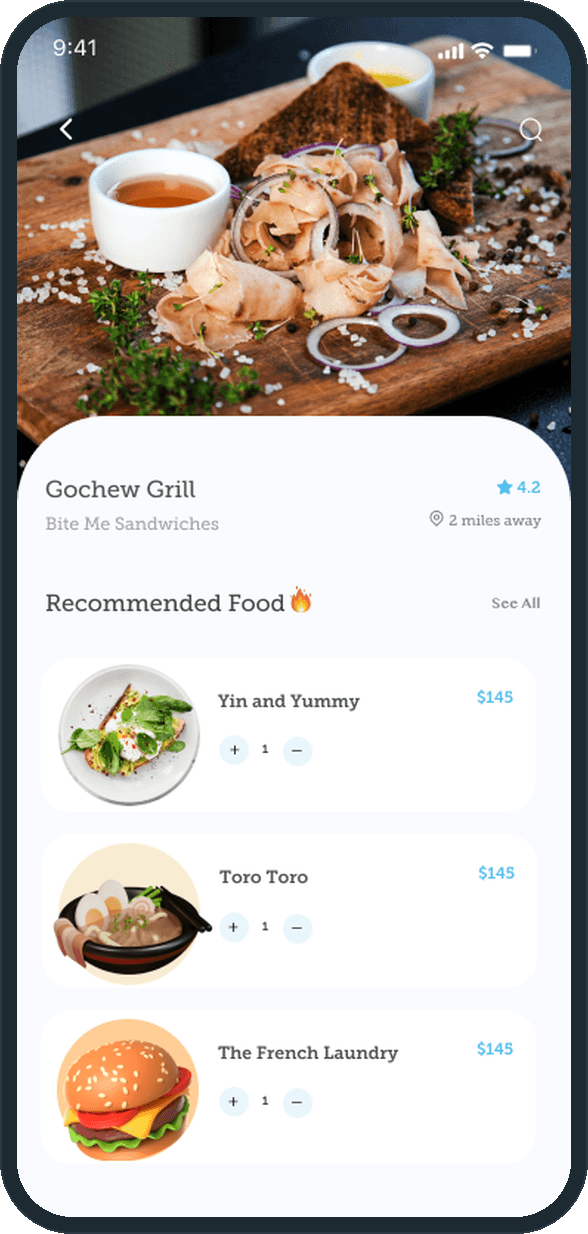
From the home screen. A search bar, two promo cards (50% off and 40% off) and Near By Restaurants with a star rating and the distance in miles. A restaurant page opens on a photo, the rating and the distance, then Recommended Food with a price and a quantity stepper per dish, and Browse Menu below it. The cart lists the items, and a Select Delivery Options sheet asks for Online Delivery or Self Delivery before Submit.
  • Savvy: How does a customer order food?
  • Savvy: How does a customer order food?
  • Savvy: How does a customer order food?

Can the customer follow the delivery?

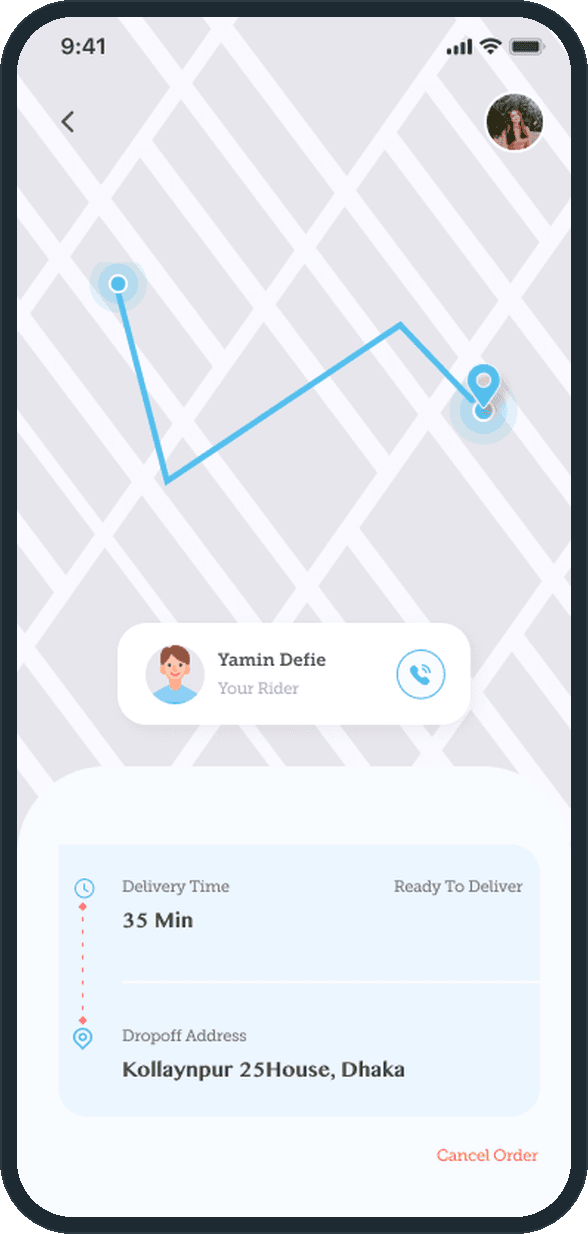
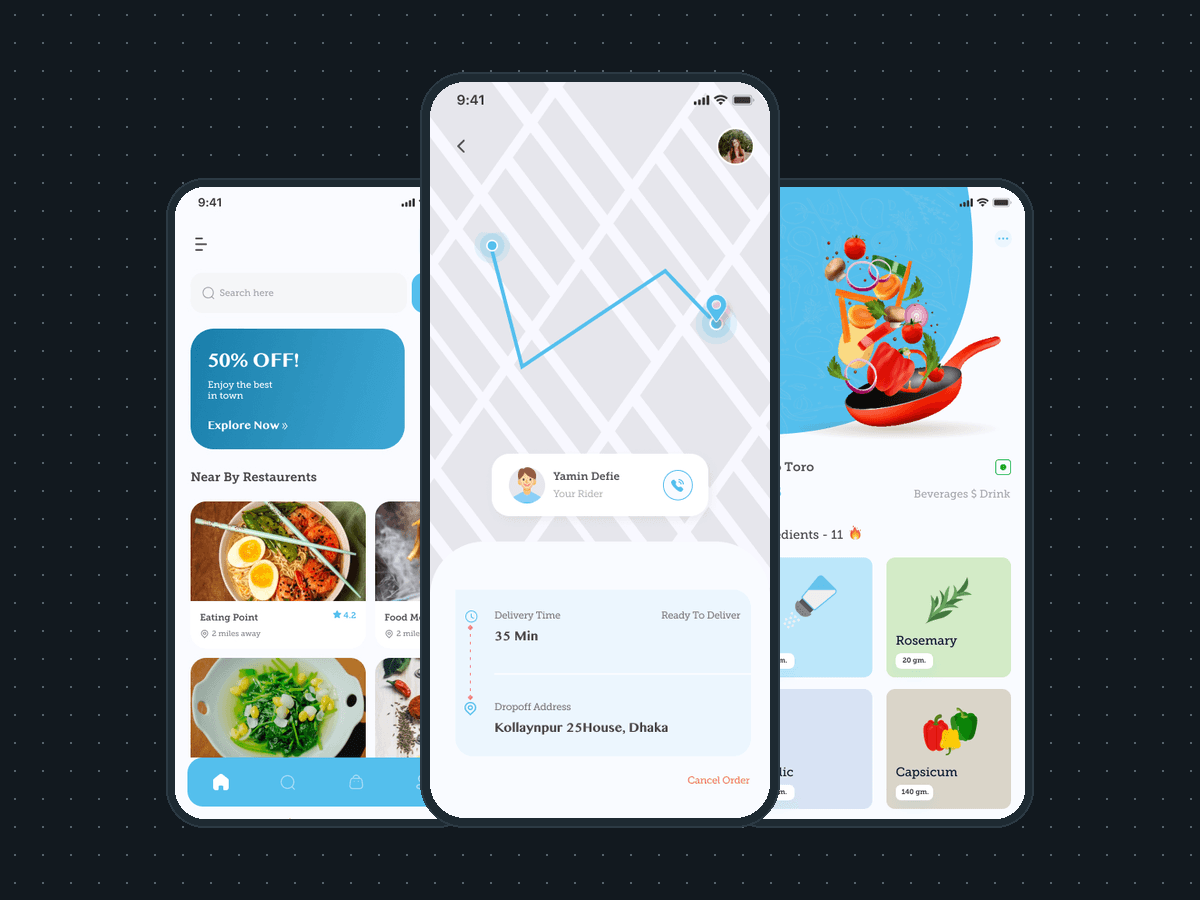
On a map. The route runs from the restaurant to the drop-off pin, with the rider's name and a call button on a card over it. Under the map, the delivery time and a Ready To Deliver status, the drop-off address and a Cancel Order link. The driver sees the same route from the other end, with a Mark as Complete action.

  • Savvy: Can the customer follow the delivery?

What does the restaurant see when an order comes in?

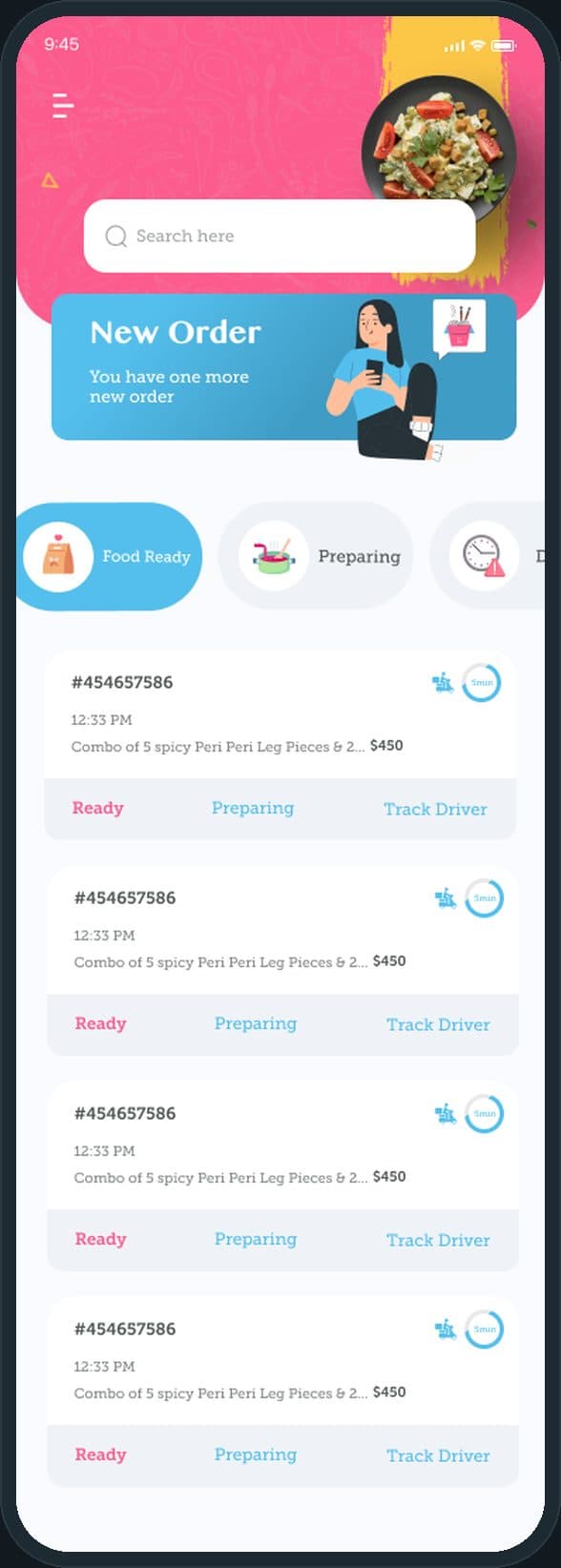
A New Order banner at the top of the orders board, then Food Ready and Preparing filters. Each order card carries its number, the time it came in, the dishes and the total, a countdown ring, and three actions: Ready, Preparing and Track Driver. The board is the restaurant's home screen: it opens on the orders, not on a menu.

Savvy: What does the restaurant see when an order comes in?

How does a restaurant manage its dishes?

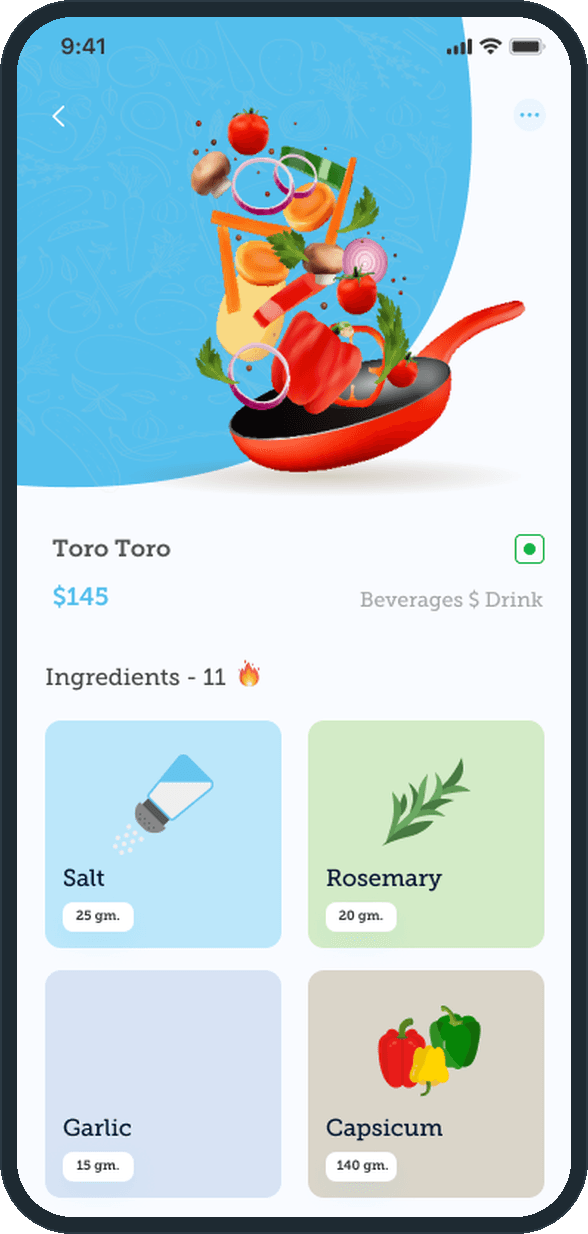
Each dish is a page: the name, the price, the category, a vegetarian mark and an ingredient grid with the weight of each ingredient in grams. Edit Dish and Delete Dish sit behind the menu in the corner. A New Dish form takes the food name, the category, the price, the ingredients, the vegetarian flag, a discount and photos, and My Dishes lists them under category chips.

  • Savvy: How does a restaurant manage its dishes?

How does a driver join and get paid?

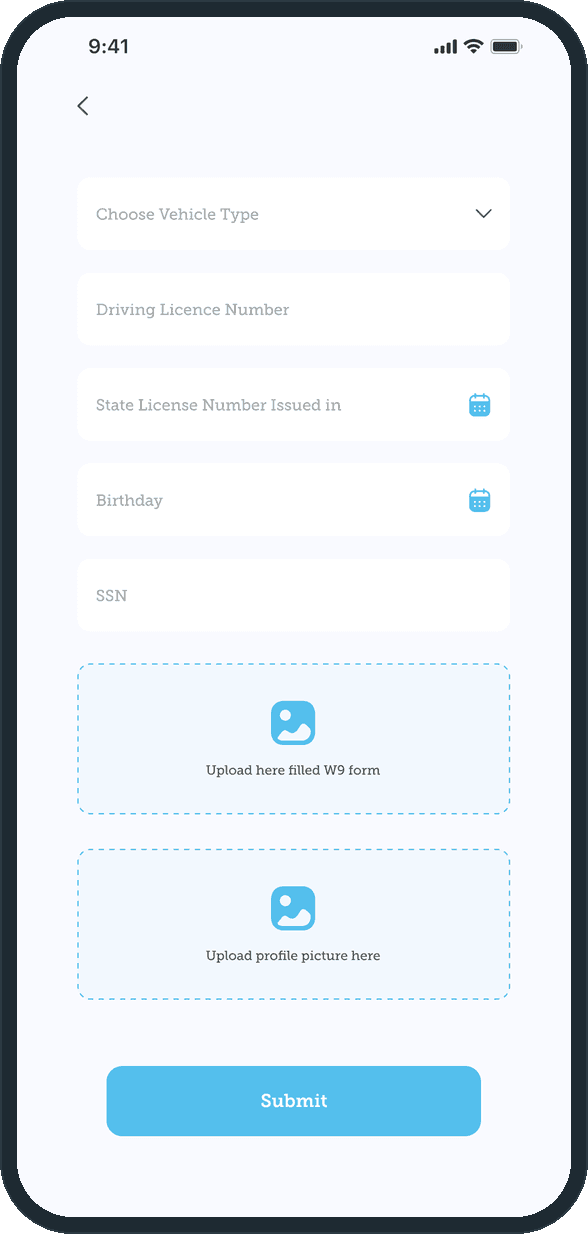
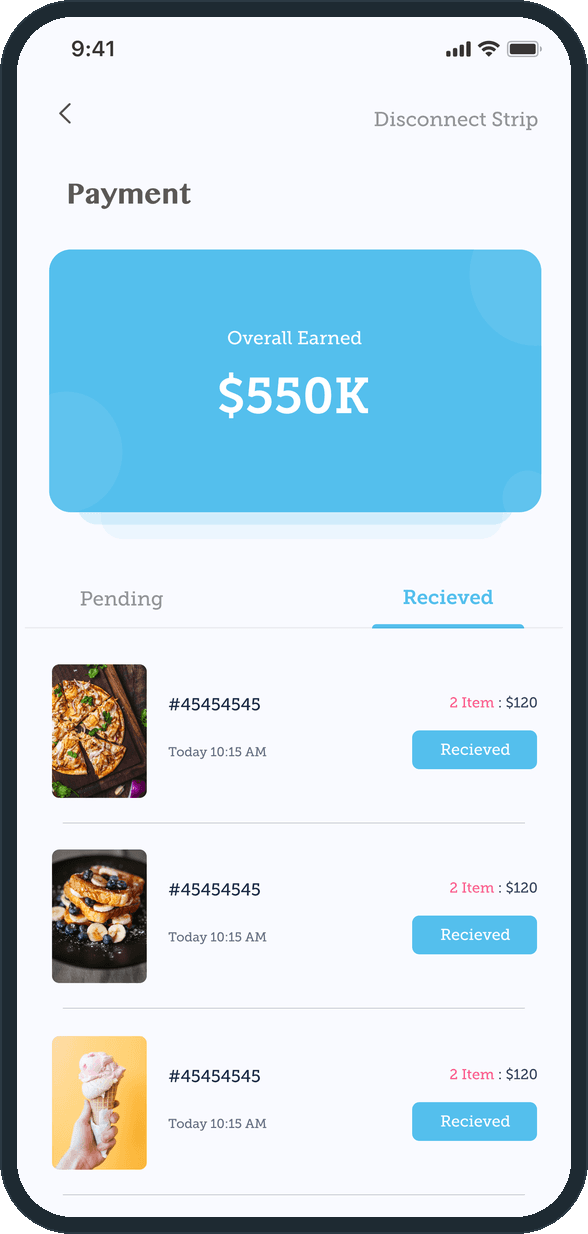
Two sign-up steps. The first takes the name, email, phone, zip code, username and password; the second the vehicle type, the driving license number and the state it was issued in, the birthday, the SSN, and uploads of a filled W-9 and a profile picture. The account then sits under verification. The Payment screen shows a card with the overall amount earned and per-order payouts under Pending and Received tabs, with a link to disconnect the payout account.

  • Savvy: How does a driver join and get paid?
  • Savvy: How does a driver join and get paid?

The decisions

  • One order, seen three ways.

    The customer sees the route on a map with the rider's name and a call button. The restaurant sees the same order as a card on its board with Ready, Preparing and Track Driver. The driver sees it under Assigned Orders with the route and Mark as Complete. Nobody has to phone anyone to find out where the food is.

  • Delivery is a choice the customer makes.

    Before an order goes in, a sheet asks for Online Delivery or Self Delivery, a delivery scooter on one line and a takeaway bag on the other. The choice is made once, in the cart, before Submit, so the restaurant knows how the food leaves before it starts cooking.

  • The restaurant runs its own drivers.

    Restaurant Driver has Assigned and Free tabs and an Assign button on each free driver. Add Driver takes a full name, an email and a temporary password to share, and a filter shows All, Added by us or Onfleet. The board and the drivers sit in the same app as the dishes.

  • Documents before the first order.

    The second sign-up step asks for the vehicle type, the license number, the state, the birthday, the SSN, a filled W-9 and a profile picture, and the account then sits under verification. The paperwork is part of joining, not an email afterward.

What was the outcome?

Built and delivered in under 6 months

One outcome per item, dated, or not disclosed: never an estimate.

Which of our services apply

Common questions

Did Plainbuilt build Savvy?

Yes. Plainbuilt designed and built it full stack and delivered it in under 6 months.

What can a customer do in Savvy?

Search and browse nearby restaurants with a rating and a distance, open a restaurant page and its menu, add dishes to the cart with a quantity stepper, choose Online Delivery or Self Delivery, follow the rider on a map with a call button, cancel an order, and reorder or rate a delivery from Order History.